Mail Center: Overview
The Mail Center gathers all e-mail correspondence of your Odoo system in one Outlook-style screen: read, write, reply and assign — without a separate mail client.
Example: a customer enquiry arrives by e-mail, is assigned to the matching lead automatically and shows up in the Inbox. You reply straight from the reading pane; the reply lands in the Outbox and on the record.
Layout
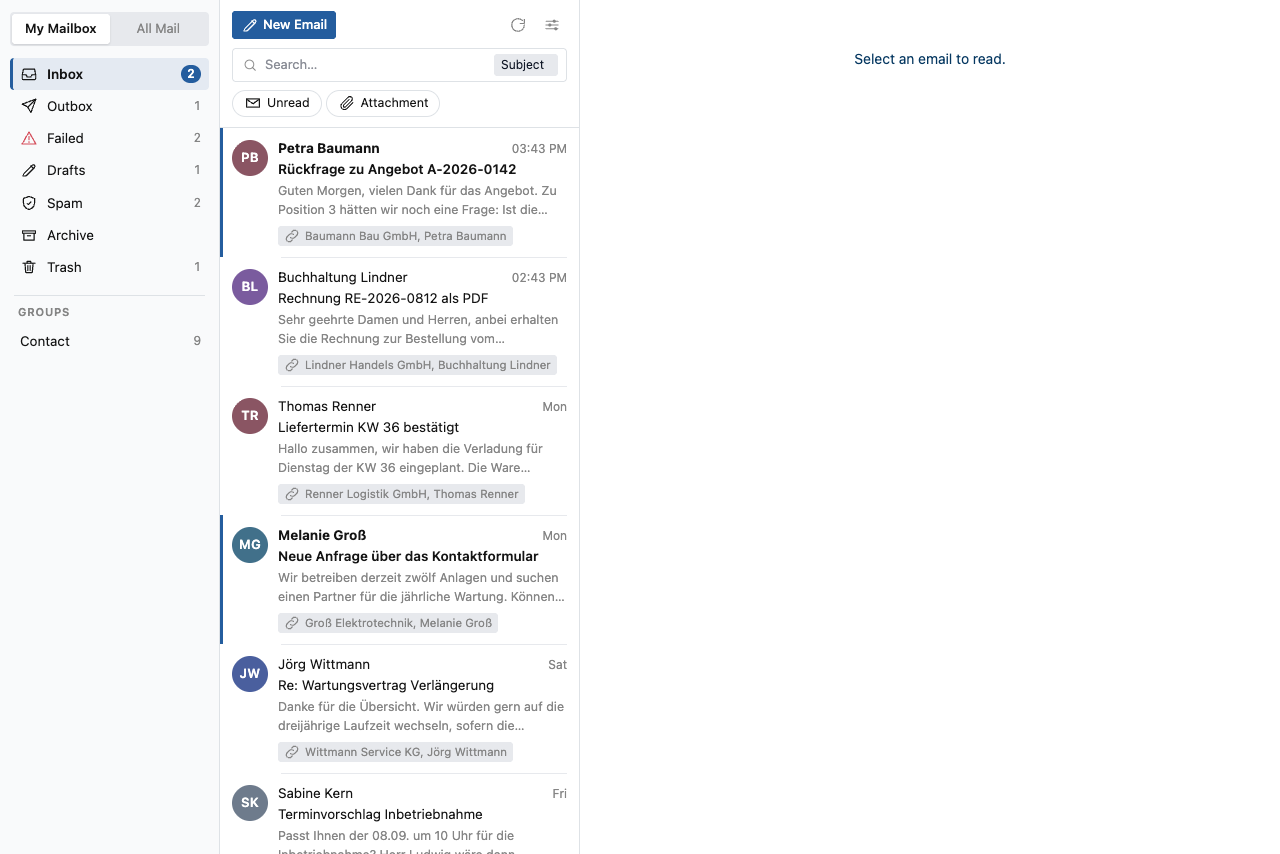
E-Mail Center → E-Mails → All E-Mails shows three panes: folders on the left, the message list in the middle, the reading pane on the right. The pane widths can be dragged and are remembered.
Folders
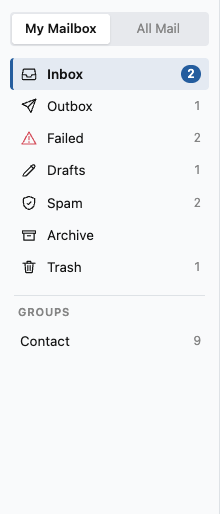
| Folder | Contents |
|---|---|
| Inbox | Received e-mail. The blue number counts the unread ones |
| Outbox | Sent e-mail |
| Failed | E-mail whose delivery failed — with "Resend" |
| Drafts | Saved drafts and mail still waiting in the queue |
| Spam | Mail from blocked senders → see "Spam and blocked senders" |
| Archive | Filed-away mail, retrievable at any time |
| Trash | Deleted mail, likewise retrievable |
Below that, Groups lists the record types e-mail is assigned to — one click narrows the list to that type.
Personal and system-wide
By default you see your personal mailbox: mail you wrote or received, or whose record you follow. Mail Center Managers can switch to All Mail in the top left and see the whole correspondence.
The message list
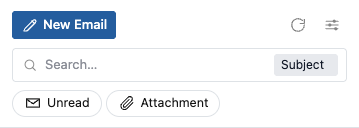
The header has three rows, each with one job: create, search, filter. Inside the search field you pick on the right what is searched (subject, sender, recipient, content or everything). The view menu — the icon next to the fetch arrow — controls preview lines, whether the composer opens as a pane or a window, and holds "Select all" and "Mark all as read".
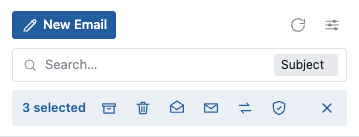
Every row carries a disc with the sender's initials on the left. Pointing at a row turns the disc into an empty box, clicking the box selects the message and fills it with a tick. As soon as something is selected, every row shows its box and a bar with the actions for that selection replaces the filter row.
The reading pane
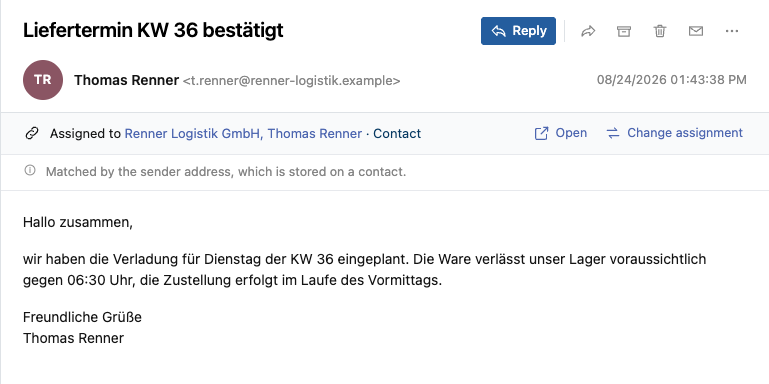
Above the body sit up to three thin bands, each carrying one statement: the assignment to a record (with "Open" and "Change assignment"), the reason the mail ended up there, and — on a failed delivery — what went wrong. Reply and forward sit in the top right.
When the inbox stays empty
If no mail arrives, the cause is almost always the mail configuration, not the Mail Center — see "Mail Delivery & Setup Check".
AI assistance (optional)
With the add-on module eq_mail_center_ai, composer and reading pane gain an AI menu (draft a reply, rework, summarise, translate), and the chat assistant can search your own mailbox and — after explicit confirmation — send mail. → See "AI in the Mail Center" (the add-on's own help topic).
Last updated: 08/25/2026